

 View without an account
 Temporary workspace
Upload a DWG or DXF file. Supported 2D drawings open with layouts, layers, filters and measurement; detected 3D ACIS solids follow a separate preview-mesh path. The two modes have different capabilities, so check the warning and representation before using the result.
Use the 2D drawing workflow for layouts and entities
For supported 2D content, inspect model space and paper-space layouts, filter layers and entity types, crop the visible viewport, select common entities and measure supported geometry. Edited 2D results can export as DXF or SVG; CADProps does not write native DWG files.
Detected 3D ACIS solids use a different preview path
When the file contains a detected 3D ACIS solid, CADProps renders a mesh preview instead of the 2D drawing scene. Paper layouts and 2D entities are not shown in that 3D result, and the preview is not treated as a native B-Rep property or CAM workflow. Request STEP or another agreed engineering solid format when downstream work needs precise solid exchange.
Keep missing drawing content visible
External references, proxy objects and unsupported drawing entities may be omitted and are reported when detected. A plausible preview is not proof that every AutoCAD-specific object, print style or referenced file was reproduced.
Input formats: DWG / DXF
General steps for uploading, viewing, sectioning, measuring, converting and exporting are explained once in How it works. This page covers what is specific to this file type.
Real CADProps screenshots
The screenshots show the English interface. Captions and instructions describe the same operations.
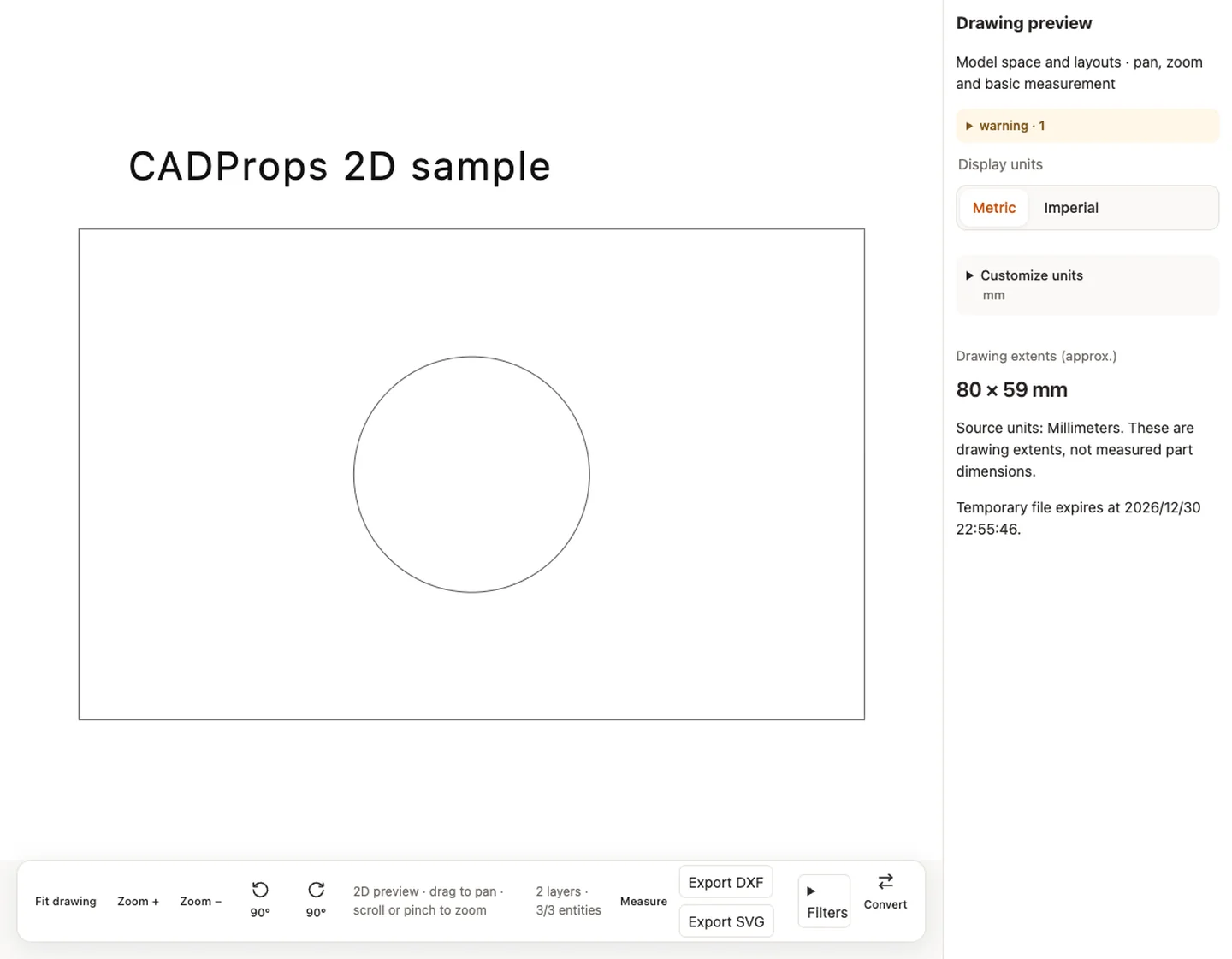
Sample source and verification
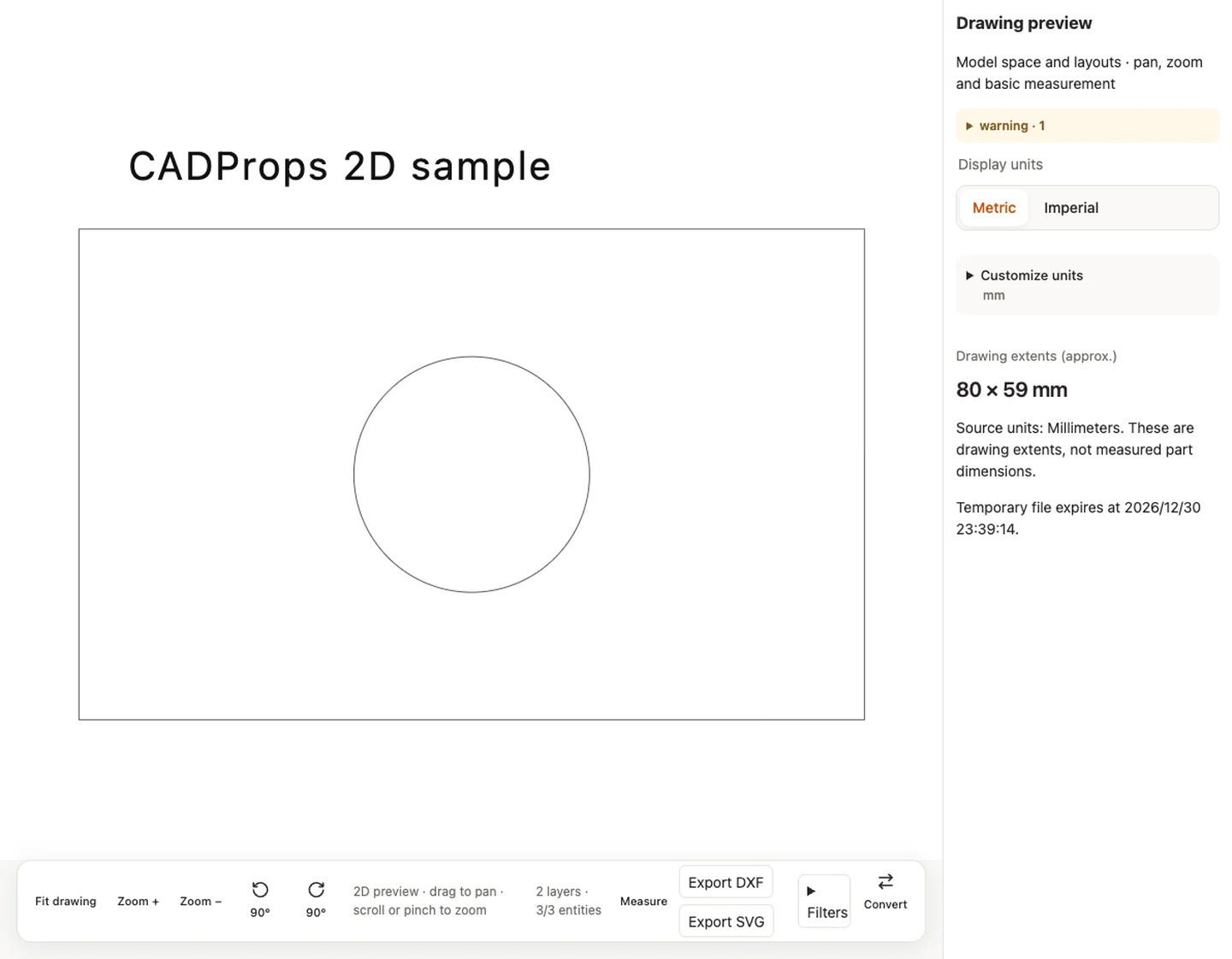
Sample source and verification
When a result needs another check
Viewing can start without an account. Conversion, account storage and share creation require signing in. Temporary files expire after the displayed retention period. Read the privacy statement for server processing and deletion, and the accuracy notes before using numerical results. Do not assume that hiding a part, clipping it or exploding an assembly changes the exported source geometry.
When a result needs another check · Input formats
Continue with a related task
- STEP File Dimensions Online: Measure X, Y, Z & Distances
- Batch STEP Properties: Export CAD Measurements to CSV
Original article: CADProps · https://www.cadprops.com/tools/dwg-viewer/
