

 View without an account
 Temporary workspace
Start with the STEP or STP file you received. Check units, loaded bodies and geometry status, then choose the specific property you need instead of treating viewing, measurement and calculation as the same task.
Look beyond the silhouette
Check the expected bodies, assembly organization and units. A clean shaded view can conceal missing information. Identify the actual geometry representation and any warnings before treating the model as ready for downstream use.
Separate viewing from calculation
The image used for display may be a tessellation. Area and volume should come from an appropriate, validated calculation path, with the method visible. If a solid is not suitable for volume, show why the result is unavailable instead of reporting zero.
Choose a focused next task
Use the dimensions tool for an envelope or distance check, the weight tool for a documented density scenario, and the validated STEP conversion tools for mesh export. Different tasks use the same input but do not make the same promises.
Open a STEP or STP file
- Open the viewer and select or drop a
.stepor.stpfile. - Wait while the file is processed on the server. Viewing and measuring need no account, and guest files are temporary.
- Read the Properties panel first: the solid count, the X × Y × Z extents and any geometry warning. Compare one extent with a dimension you already know.
- For an assembly, open Structure and check that every expected component is listed.
If you are not sure what the file contains, what a STEP file is and how to open it explains the file header, the AP203, AP214 and AP242 names, and what a STEP file can and cannot carry.
Inspect an assembly part by part
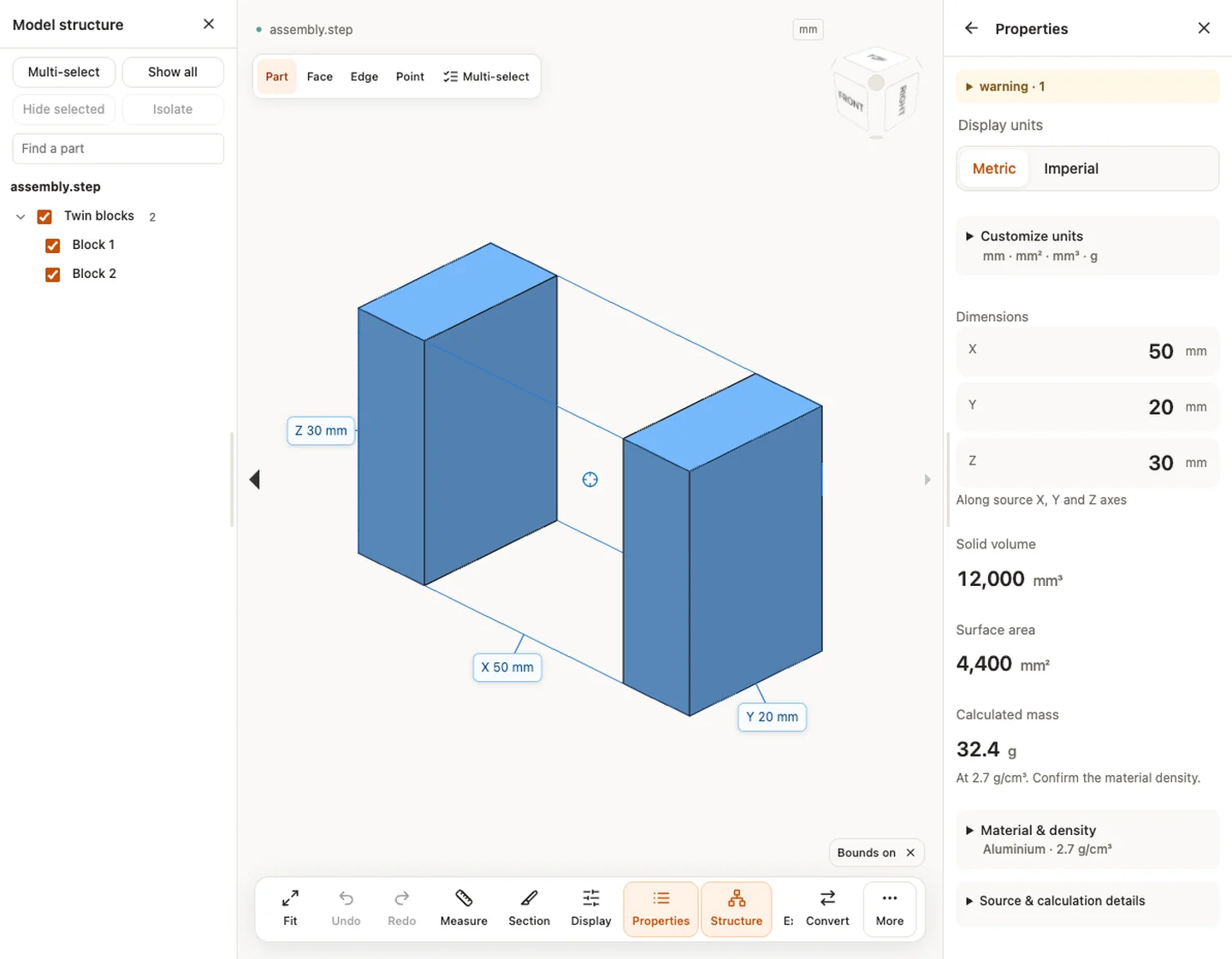
Self-contained STEP assemblies keep readable component names, colors and placements. Use the Model structure panel to select a component, hide it, isolate it or find a part by name. Totals count repeated instances, and overlapping parts are not subtracted. Hiding, clipping or exploding a part changes only what you see, not the source geometry.
Choose the right measurement mode
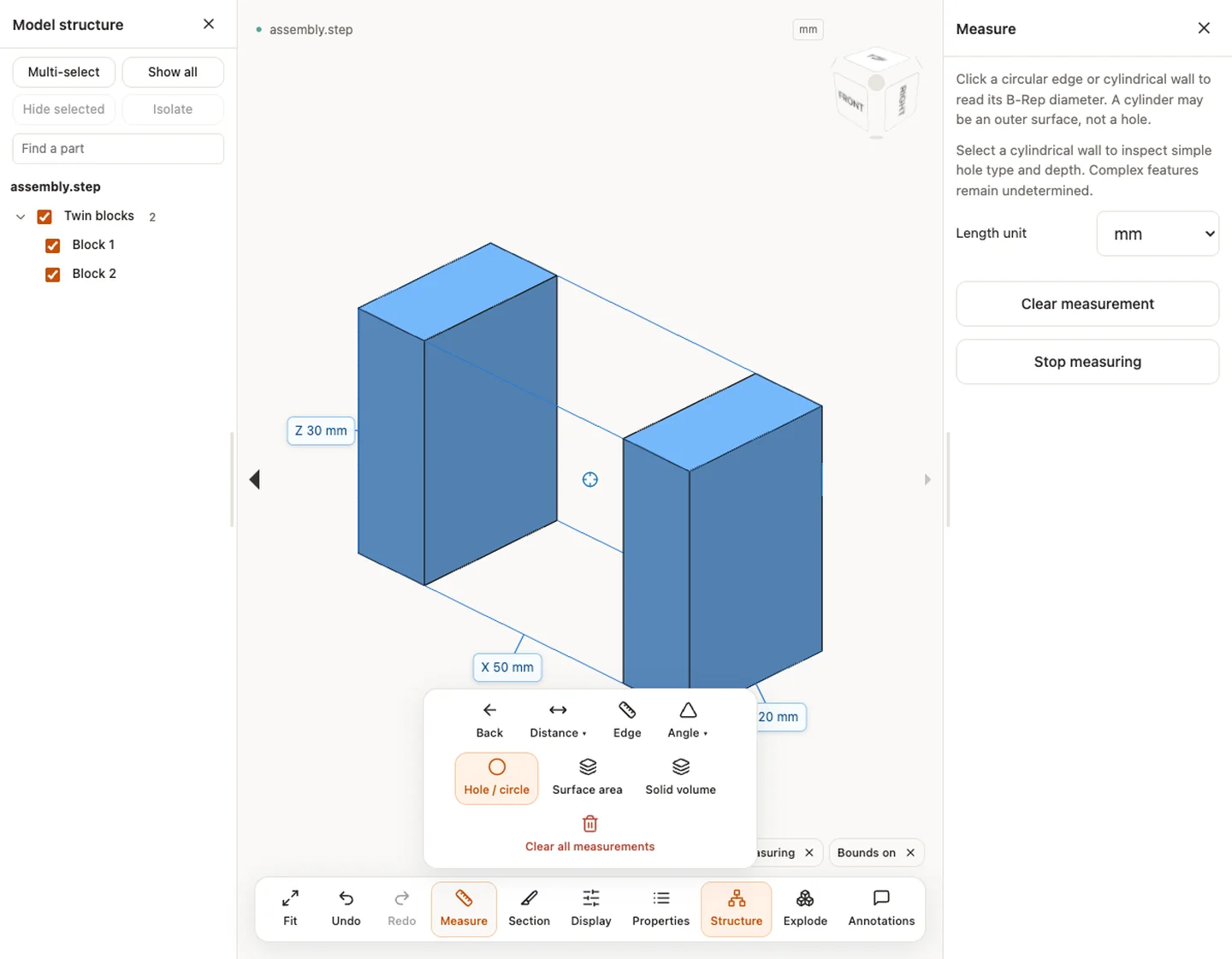
The modes answer different questions, so keep the mode and unit next to every number you copy out.
- Distance between two picked points is approximate, because the pick lands on the display mesh.
- Edge length and Hole / circle diameter read supported B-Rep geometry. Click a circular edge or a cylindrical wall to read a diameter; a cylinder can be an outer surface rather than a hole.
- Hole type and depth are shown for simple cases: full cylindrical through holes and flat-bottom blind holes. Stepped, intersecting and conical-bottom holes remain unclassified.
- Surface area and Solid volume come from the B-Rep when the file provides a valid closed solid. When it does not, the result is unavailable and is never shown as zero. Source units, method and precision in the Properties panel states how each value was obtained.
Section and display the model
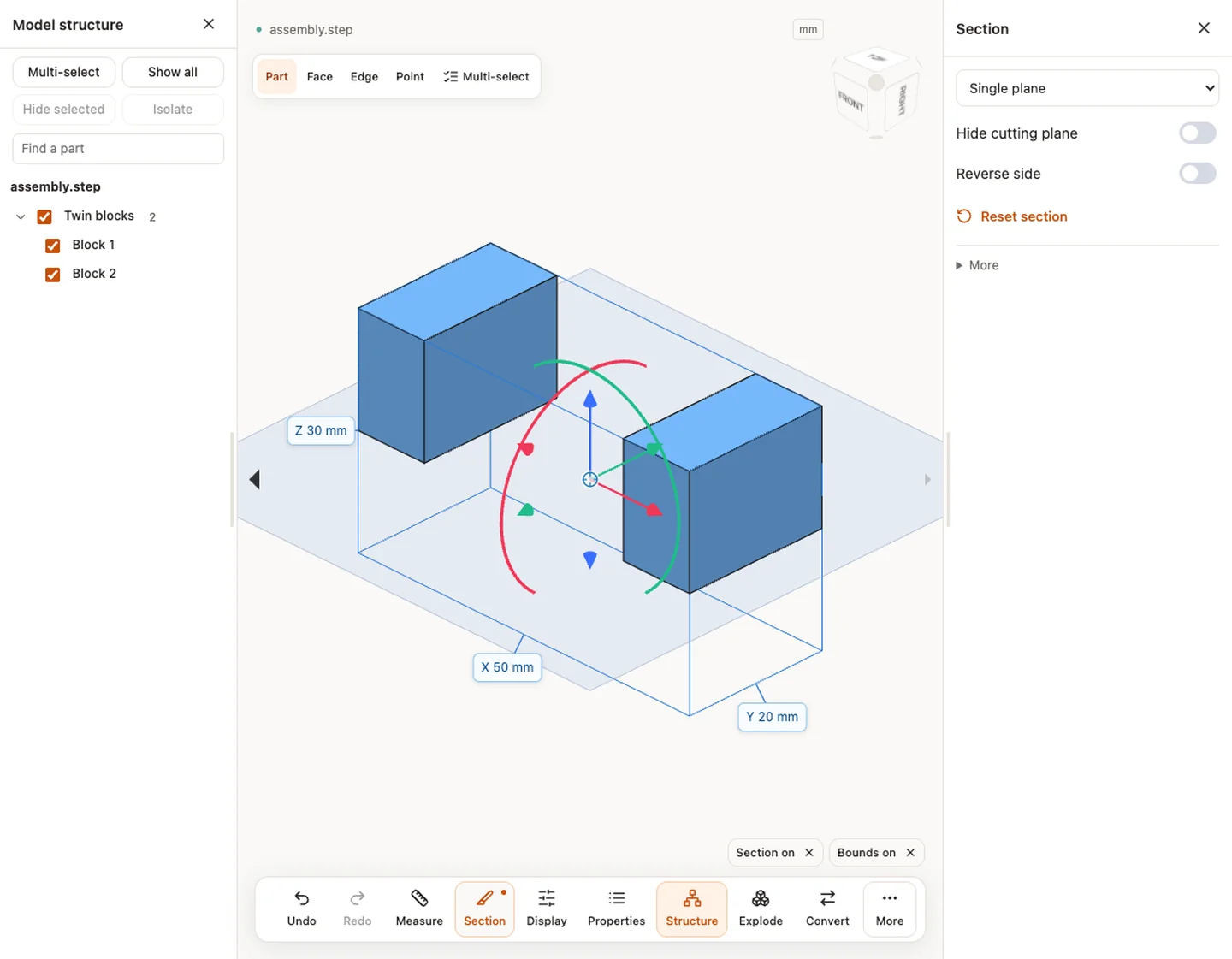
Section cuts the view with a single plane, several planes or a box, and you can reverse the side or hide the cutting plane. It clips only what you see; it does not calculate a cross-section area. The display options include wireframe and transparent views, which help when one body hides another.
Checks specific to STEP files
- Units. Compare one known dimension before using any measurement. A model that is 25.4 times too large or small points to an inch and millimetre mix-up; see fixing a 25.4 scale error.
- External references. CADProps reads self-contained STEP files and does not fetch files an assembly refers to. If parts are missing, ask the sender for a single-file assembly export.
- Open surfaces. A model that looks solid can be a set of open surfaces. Volume is then unavailable; why STEP volume is zero or missing explains the cause.
- Feature history. A STEP file carries the resulting geometry, not the feature tree. See why STEP export has no feature tree.
- Protocol. The header names the application protocol the exporter used. AP203, AP214 and AP242 lists what each can carry.
Input formats: STEP / STP
General steps for uploading, viewing, sectioning, measuring, converting and exporting are explained once in How it works. This page covers what is specific to this file type.
Real CADProps screenshots
The screenshots show the English interface. Captions and instructions describe the same operations.
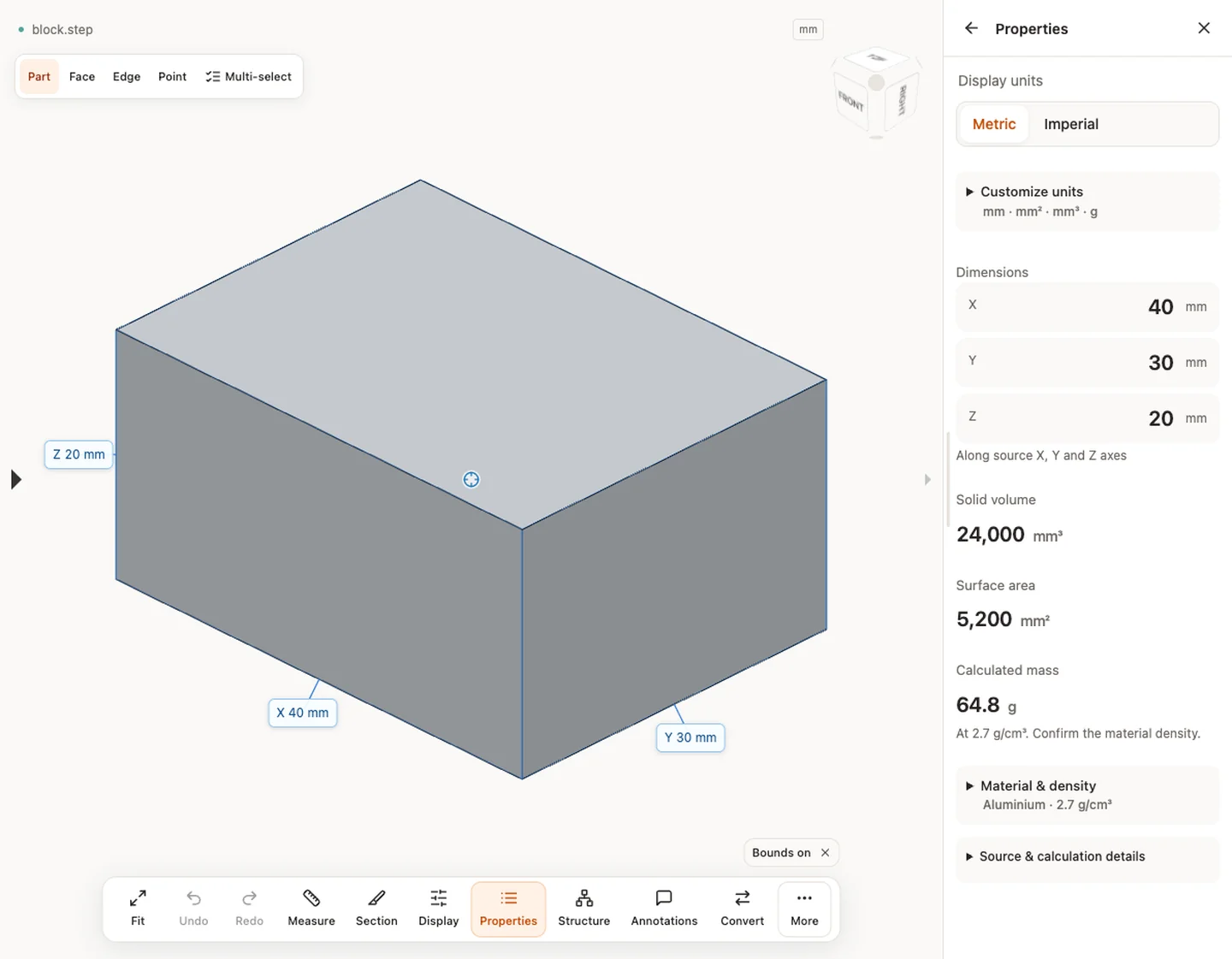
Sample source and verification
When a result needs another check
Viewing can start without an account. Conversion, account storage and share creation require signing in. Temporary files expire after the displayed retention period. Read the privacy statement for server processing and deletion, and the accuracy notes before using numerical results. Do not assume that hiding a part, clipping it or exploding an assembly changes the exported source geometry.
When a result needs another check · Input formats
Continue with a related task
- STEP File Dimensions Online: Measure X, Y, Z & Distances
- CAD Volume Calculator: Measure STEP Solid Volume
- CAD Surface Area Calculator: Measure STEP Geometry
- CAD Weight Calculator: STEP Volume & Material Density
- Convert STEP to STL Online
For fast part and assembly viewing, see Fast CAD viewing with CADProps, with real model examples and loading times.
Original article: CADProps · https://www.cadprops.com/tools/step-viewer/


